
Assessing skills with computer literacy test results: a guide for hiring teams
A practical guide to testing candidates' computer skills: what to assess by role, task formats, sample questions, cutoffs and fair use.
Assessing skills with computer literacy test results means giving candidates short, job-related questions and tasks on everyday software (the operating system, files, email, the browser, documents and spreadsheets) and using the scores to decide who moves forward. Done well, the assessment shows who can do the computer work the role needs on day one, and who will need training first.
TL;DR:
- A computer literacy assessment checks whether a candidate can handle the everyday software a job uses: files, email, the browser, documents, spreadsheets and basic security.
- Computer literacy and basic IT skills were behind 21% of hard-to-fill vacancies in the UK Employer Skills Survey 2024, so the gap is real even for non-technical roles.
- Mix short knowledge questions with two or three hands-on tasks. A quiz alone shows what candidates know, not what they can do.
- Keep it to 10 to 20 minutes and use it early, as a first-round screen for admin, support and contact center roles.
- Set the cutoff by testing current staff in the same role first, never by guessing a round number.
- Keep every question tied to the job and offer accommodations, as EEOC guidance on employment tests expects.
 ChatGPT
 Gemini
 Claude
 Grok
 Perplexity
What does assessing computer literacy before hiring involve?
Assessing computer literacy before hiring involves measuring how well a candidate uses the computer tools a specific job depends on, then comparing the result with a standard set for that role. The assessment covers practical skills such as finding and saving files, sending an email with an attachment, searching the web safely and formatting a document.
A good assessment does not test trivia about computer parts. The assessment checks the tasks a new hire will repeat every day, at the level the role really needs. A receptionist and a financial analyst both need computer skills, but not the same ones.
The need is measurable. The UK Employer Skills Survey 2024, based on interviews with 22,712 employers, found that a lack of digital skills contributed to 38% of skill-shortage vacancies, up from 32% in 2022. Basic Microsoft Office skills were missing in 29% of those digital shortages, and foundation skills such as typing, changing passwords and connecting to the internet in 14%.

Why do hiring teams screen for computer skills?
Hiring teams screen for computer skills because a resume line like "proficient in MS Office" says nothing about the level, and the cost of a wrong guess shows up later as training time, slow work and frustrated customers. A short assessment replaces that guess with evidence.
- Objective comparison: Every candidate answers the same questions and is scored on the same criteria, which cuts the room for first impressions and resume polish to sway the decision.
- Time saved in interviews: Screening early removes candidates who cannot meet the baseline, so interviewers spend their hours on people who can do the work.
- Training needs in advance: Per-skill scores show where a strong hire still needs support, so onboarding starts with a plan instead of a surprise.
- Fit to the job: A test built from the job's real tasks shows who can do that job, not who is good at computers in general.
- Fewer security slips: Basic security habits, such as spotting a phishing email or using a strong password, can be checked before someone gets access to customer data.
- Faster ramp-up: New hires who already handle the core tools reach full output sooner.
The same survey found that digital skills contributed to 36% of skills gaps among existing staff, up from 32% in 2022. Testing at hiring is cheaper than finding the gap after the start date.
Which computer skills should you assess for each role?
Computer skills to assess fall into a common base that every computer-based role needs, plus a layer that depends on the job. Start with the base, then add only what the role uses at least weekly.
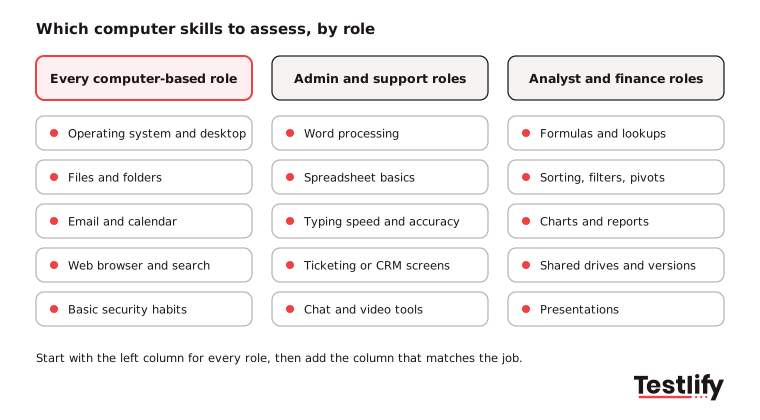
The common base covers five areas:
- Operating system and desktop: Opening programs, using settings, switching windows, using shortcuts on Windows or macOS.
- Files and folders: Saving, naming, moving, finding and sharing files, including cloud drives.
- Email and calendar: Replying, forwarding, attaching files, using CC and BCC, booking meetings.
- Web browser and search: Tabs, addresses, search, downloads and judging whether a site is safe.
- Basic security habits: Passwords, phishing emails, locking the screen and handling personal data.
Role group | Add to the common base | Suggested level |
|---|---|---|
Receptionist, admin assistant | Word processing, calendar management, typing | Beginner to intermediate |
Customer support, contact center agent | Typing speed and accuracy, switching between screens, chat tools | Intermediate |
Data entry clerk | Numeric typing, spreadsheet entry, accuracy checks | Intermediate |
Healthcare front desk, medical records | Records software navigation, privacy handling, email | Intermediate |
Analyst, finance, operations | Formulas, lookups, sorting, filters, pivot tables, charts | Intermediate to advanced |
Sales and account roles | CRM updates, email, presentations, video calls | Intermediate |
Pro tip: Ask the hiring manager to list the five software tasks a new hire does most in week one. Those five tasks are your test plan.
Which formats work best for a computer skills assessment?
Computer skills assessments use two main formats: knowledge questions, where the candidate picks the right answer, and hands-on tasks, where the candidate does the work in a simulated or real program. Most hiring teams get the clearest picture by combining both.
Format | What it shows | Good for | Limit |
|---|---|---|---|
Multiple-choice questions | Knowledge of features, terms and safe practice | Large first-round screens | Shows recall, not doing |
Simulations | Whether the candidate can complete the task in a mock program | Roles with daily software work | Menus differ between software versions |
File upload tasks | Real output, such as a formatted document or a spreadsheet | Admin, analyst and finance roles | Needs a rubric or automatic checks |
Typing tests | Speed and accuracy | Support, data entry, contact center | Covers one skill only |
Vendor formats show the typical length. Criteria's Computer Literacy and Internet Knowledge Test runs about 10 minutes, with two 3-minute simulations and 10 multiple-choice questions. eSkill notes that knowledge results alone "do not confirm that applicants know how to apply them", which is why it adds simulations.
What do good computer literacy questions look like?
Good computer literacy questions describe a real workplace situation, ask for one clear action and have one defensible right answer. They use plain words, avoid brand trivia and match the difficulty to the role.
Skill | Sample question or task | What a strong answer shows |
|---|---|---|
Files | Save the attached invoice to the "Q3 Invoices" folder and rename it with today's date. | Knows save-as, folders and naming |
Forward this message to your manager, copy the client, and attach the PDF. | Uses forward, CC and attachments correctly | |
Browser | Which of these links is most likely a phishing link? | Reads addresses and spots fake domains |
Documents | Turn these notes into a two-level bulleted list and add a heading. | Uses styles and lists, not manual spacing |
Spreadsheets | Add a total row and sort the table by amount, largest first. | Uses SUM and sort without breaking rows |
Security | A caller asks for your password to "fix your account". What do you do? | Refuses and reports it |
Inclusive questions keep the test about skill, not background:
- Clear, simple wording: Short sentences without jargon, so reading level does not decide the score.
- Neutral examples: Situations from ordinary work, free of cultural references or gender stereotypes.
- Balanced difficulty: A mix of easy, moderate and harder items, so both beginners and strong users can show their level.
- Real-life scenarios: Tasks the person will actually meet in the job, which also makes the test feel fair to candidates.
How do you build a fair and accurate computer skills assessment?
A fair and accurate computer skills assessment is built in six steps: list the job's tasks, choose skills and format, pilot with current staff, set a cutoff, screen candidates, then review and update the test. Fairness checks and accommodations run through every step.
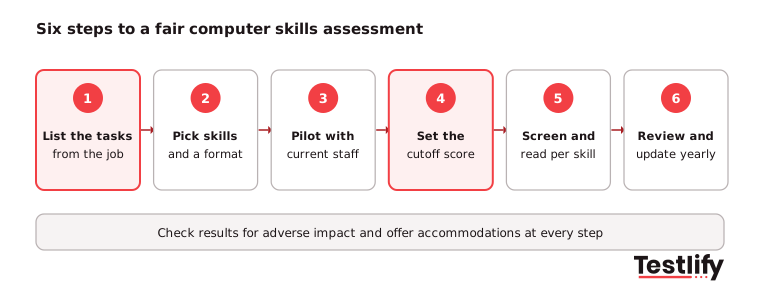
- List the tasks from the job: Use the job description and the hiring manager's week-one list. Leave out anything the role does not use.
- Pick skills and a format: Choose the common base plus role skills, then decide the mix of questions and tasks. Keep the total to 10 to 20 minutes.
- Pilot with current staff: Give the test to people already doing the job well. Remove questions that most of them miss or that confuse them.
- Set the cutoff score: Base it on the pilot results, as explained in the scoring section below.
- Screen and read per skill: Use the overall score to shortlist and the per-skill breakdown to plan interviews and training.
- Review and update: Check results by group at least once a year, and refresh questions when the team's software changes.
The legal bar is clear. EEOC guidance on employment tests says a test that screens out a protected group must be job-related and consistent with business necessity, and that employers should validate tests for the specific job even when a vendor provides documentation. Testing only the tasks the role uses is the simplest way to stay inside that line.
Key takeaway: The fairest assessment is the narrowest one. Every question should trace back to a task in the job.
How do you make the assessment accessible to every candidate?
An accessible assessment lets every candidate show their computer skills without the test format getting in the way. Accessibility also improves the experience for everyone, not only people with disabilities.
- Assistive technology support: The test should work with screen readers, magnifiers and voice input, and follow the W3C Web Content Accessibility Guidelines.
- Alt text and captions: Images need descriptions, and audio or video items need captions or transcripts.
- Readable design: Good color contrast, resizable text and a clean, simple layout.
- Clear instructions: Say how long the test takes, how many sections it has and whether candidates can go back.
- Accommodations on request: Extra time or an alternative format, offered in the invitation email so candidates know they can ask.
- Practice question: One unscored sample item so nervous or less experienced candidates learn the interface first.
The EEOC guidance also says tests must measure the intended skill rather than a person's impairment, and that employers must provide reasonable accommodations in how a test is given unless that would cause undue hardship.
How should you set cutoff scores and read the results?
Cutoff scores for a computer skills assessment should come from your own data, because there is no national passing standard. The usual method is to test current employees who perform well in the role and set the cutoff near the lower end of their scores.
- Start from the pilot: If good performers score between 70% and 90%, a cutoff around 65% to 70% keeps capable candidates in and filters out those far below.
- Use separate cutoffs by role: A data entry role and a front desk role should not share one pass mark.
- Read the per-skill breakdown: A candidate at 60% overall with full marks on spreadsheets may be a better analyst hire than one at 75% who failed them.
- Treat it as one input: Combine the score with interviews, work samples and other tests. Never reject on a score alone without a human review.
- Plan training from gaps: Weak areas in a hired candidate become the first items in onboarding.
- Check items and groups: Review questions that almost everyone gets right or wrong, and compare pass rates across groups to catch problems early.
Across the teams we speak with, the most common mistake is setting one high cutoff for every role. That shrinks the pool without improving the hires.
Where should the assessment sit in your hiring process?
The assessment usually sits right after the application, as the first screen, for roles where computer skills are a must-have. For roles where they matter less, it fits better later, next to a work sample or as a check before the final interview.
- Early screen for volume roles: In contact center, support and admin hiring, a 10 to 20 minute test sent automatically after applying cuts the shortlist fast. See how teams run volume hiring with assessments.
- Combine with related tests: Pair the computer skills test with a typing test, a Microsoft Word test or a role-specific test in one assessment, so candidates do one sitting instead of three.
- Connect to your ATS: Send invites and get scores back in the system recruiters already use, so nobody copies results by hand.
- Protect the result: Remote tests need basic proctoring, such as full-screen mode and copy-paste blocking, so the score belongs to the candidate.
For a wider view of tests by software and role, read how teams use a Microsoft Office test in the hiring process and the history of the computer skill test in hiring.
How does Testlify help hiring teams assess computer skills?
Testlify helps hiring teams assess computer skills with ready-made tests, hands-on simulations and automatic scoring, all in one assessment that candidates take online. Recruiters can start from a library test or build a custom assessment from a job description.
- Ready-made tests: The computer literacy test for Mac users has 10 questions in 10 minutes on the operating system, internet, files and email. The basic computer skills test has 36 questions in 20 minutes across nine areas, from hardware and security to Microsoft Office. A digital literacy test series covers Windows, macOS, email, Google Docs and cybersecurity basics.
- Hands-on formats: Microsoft Office and Google Workspace simulations, typing tests and file upload questions sit alongside 25+ question types, so candidates show the skill instead of describing it.
- A wide library: 3,500+ tests let you add typing, language or role-specific tests to the same assessment.
- Fair, protected results: 20+ proctoring checks, including full-screen enforcement, tab tracking and copy-paste blocking, keep scores honest. Tests run in 15+ languages.
- Scores that fit your stack: Per-skill reports, benchmarks and score thresholds for auto-shortlisting, with 100+ ATS integrations such as Workday, Greenhouse and Lever.
Ready to test computer skills in your next hiring round?
Pick the tests that match your role from the Testlify test library, send them to your next applicants and compare results by skill. Testlify offers a 7-day free trial with no credit card, and credits are used only when a candidate starts an assessment. For a walkthrough with your own roles, book a demo.
Frequently asked questions (FAQs)

Human Resources Lead
Snehi Parmar leads People at Testlify, owning hiring, culture, performance, and retention for a 90-person team. She writes on practical HR strategy and building people processes that scale.
Related resources
View all
Skill assessment
Top language assessment tools for hiring in 2026

Skill assessment
Why is a product manager assessment essential for recruiting?

Skill assessment
Why an accounting manager test is essential for recruiting

Skill assessment
Why is a performance marketing test essential for recruiting?

Skill assessment
Why is a customer success manager test essential for recruiting?

Skill assessment
Business judgment test: what it measures and how to use it
Get started.
Hire on proof, not resumes.
Run your first skills-based assessment free — no credit card required.