
How to tailor Excel assessments to your company needs
Learn how to create tailored Excel assessments that reflect real job tasks, improve hiring accuracy, and streamline recruitment for large teams.

From finance and HR to marketing and operations, nearly every department relies on Excel for organizing, analyzing, and reporting critical business data. In fact, a study found that 55% of middle-skill jobs require proficiency in Excel or similar spreadsheet tools.
But here’s the problem: most Excel assessments used in hiring are generic, outdated, and disconnected from the actual work your candidates will do. For large organizations, this results in poor hiring signals, mismatched skill sets, and wasted time.
That’s why tailored Excel assessments are becoming a go-to strategy for enterprise HR teams. When assessments mirror the real challenges of the role, you don’t just test for knowledge, you measure performance, accuracy, and job readiness.
In this blog, we’ll show you exactly how to design Excel assessments that align with your company’s unique workflows and hiring goals so you can confidently identify the right talent, faster.
 ChatGPT
 Gemini
 Claude
 Grok
Grok Perplexity
Why do generic Excel tests fall short?
Let’s start with the obvious: not every Excel user is the same. A financial analyst and a marketing analyst might both spend their days in spreadsheets, but their tasks and the skills they need are completely different.
Generic tests often measure broad capabilities without context. The result? You end up screening out good candidates or, worse, hiring someone who struggles with the actual tasks they’ll face on the job.
Some common problems with generic Excel tests:
- They overemphasize obscure features no one uses.
- They lack practical, job-relevant tasks.
- They fail to differentiate between beginner, intermediate, and advanced roles.
- They test memorization rather than application.
That’s where tailoring comes in.
How Testlify support tailored Excel assessments?
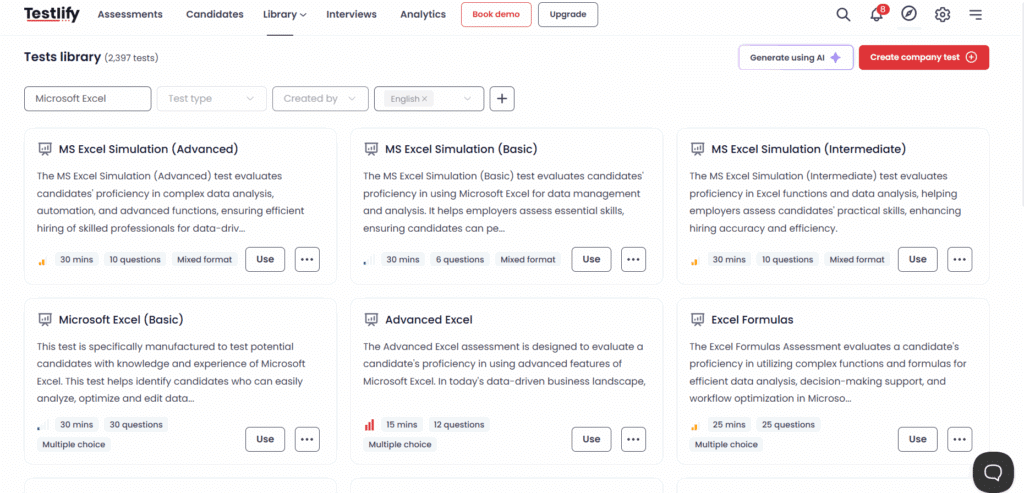
Testlify makes it easy for hiring teams to build job-relevant Excel assessments. You can start with pre-built test templates based on functions like lookup formulas, conditional formatting, or statistical analysis. Prefer a hands-on task? Upload a custom .xlsx file and create real-world Excel questions that simulate on-the-job tasks, perfect for testing practical skills.
You also have control over the completion time, test cases, and scoring. Whether you’re hiring entry-level analysts or senior finance professionals, the flexibility to tailor each Excel test to your company’s specific needs ensures more relevant results and better hiring outcomes.

Key benefits of tailored Excel assessments
When you create assessments aligned with your company’s workflow and job expectations, the results are significantly more meaningful. Here’s why it matters:
Improved hiring accuracy
Tailored Excel assessments reflect the actual tasks candidates will perform, allowing you to assess real-world job skills instead of generic knowledge. This increases the accuracy of your hiring decisions and ensures that the people you bring on board are capable of hitting the ground running in their specific roles.
Time and cost savings
Custom assessments streamline the hiring process by filtering out unqualified candidates early on. This reduces time spent on unnecessary interviews and minimizes the need for extensive post-hire training. By identifying the right fit faster, your team can focus resources on onboarding and productivity rather than correction or replacement.
Enhanced candidate experience
When candidates encounter tests that feel relevant to the job, they’re more engaged and confident. Tailored assessments demonstrate professionalism and respect for their time, improving completion rates and overall satisfaction. A positive testing experience enhances your employer brand and encourages top talent to stay invested in the hiring process.
Data-driven decision making
Customized tests generate valuable performance data tied directly to the role’s requirements. This enables you to compare candidates based on the exact skills needed for success, rather than relying on resumes or gut instincts. The result is a more objective, consistent, and defensible hiring process for your team.
Step-by-step: How to customize Excel assessments
Let’s walk through how your HR or talent acquisition team can build Excel assessments that are tailored to your company’s hiring needs.
Define role-specific requirements
Before you start crafting test questions, get crystal clear on what the role requires. Work closely with hiring managers to understand:
- What Excel tasks are part of daily work?
- What level of proficiency is required (basic, intermediate, advanced)?
- Are there any industry-specific Excel functions or processes?
For instance, if you’re hiring for procurement, VLOOKUPs and pivot tables might be vital. For a sales analyst, working with charts and dashboards could be more important.
Map Excel skills to business tasks
Translate job duties into skills and then into test components. Here’s a quick mapping example:
Business task | Excel skill | Test focus |
|---|---|---|
Prepare monthly reports | Pivot tables | Summarize and group data |
Budget forecasting | Formulas, IF statements | Build basic financial models |
Clean CRM data | Data cleaning, Filters | Use conditional formatting & sort/filter |
By keeping things job-centric, you ensure that your assessment reflects reality not theory.
Choose the right question types
A well-rounded Excel assessment should include a mix of question formats, such as:
1. Multiple choice
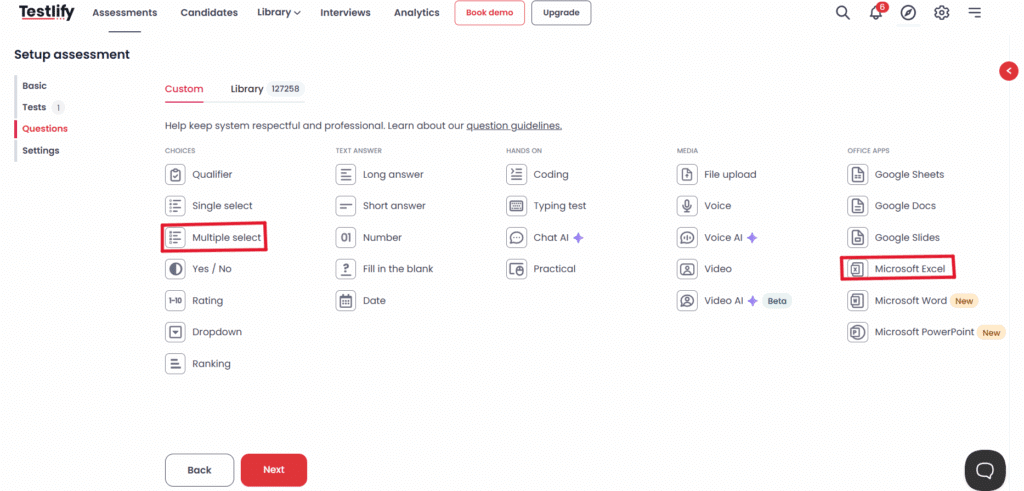
Useful for evaluating conceptual understanding (e.g., “Which formula calculates the average of a range?”).
2. Practical simulations
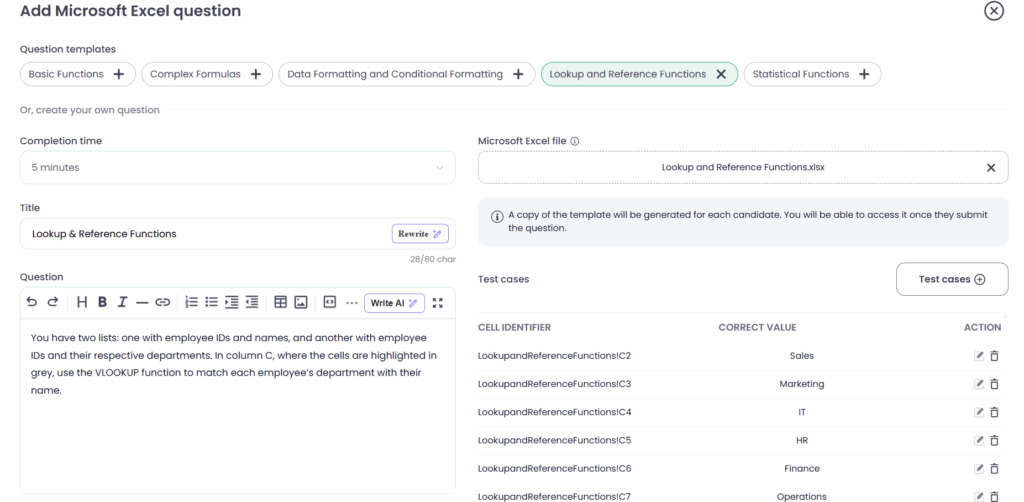
Let candidates work in real spreadsheet environments to perform tasks like creating pivot tables, using formulas, or manipulating datasets.
3. Case-based scenarios
Give them a business context and ask them to solve a problem using Excel, just like they would on the job.
Simulated tasks and real data environments provide the most accurate signal of a candidate’s capabilities.
Balance difficulty levels
Not every candidate needs to be a macro wizard. Your test should reflect the actual expectations of the role:
- Entry-level roles: Emphasize data entry, basic formatting, SUM/AVERAGE formulas.
- Mid-level analysts: Include lookup functions, pivot tables, charts.
- Senior roles: Test scenario modeling, nested formulas, and data visualization.
Avoid the temptation to overload the test with advanced questions unless the role demands it.
Automate scoring
Tools like Testlify allow you to automate scoring for both MCQs and simulations, ensuring consistency and objectivity.
But here’s the catch: for high-stakes roles, consider adding a manual review step, especially for complex spreadsheet tasks. Sometimes the how is as important as the what.
Mistakes to avoid when designing Excel tests
Even with good intentions, some companies fall into these traps:
Making it too hard
Including overly advanced Excel tasks in your test can discourage capable candidates, especially if those skills aren’t actually required for the job. Keep the assessment aligned with real-world role expectations to avoid false negatives and ensure you’re evaluating relevant skills, not just testing for the sake of difficulty.
Ignoring the user interface
A poorly designed testing interface with unclear instructions or clunky navigation frustrates candidates and can lead to drop-offs. Choose a testing platform that offers a clean, intuitive user experience. A smooth and professional interface reflects well on your brand and ensures candidates focus on their skills not on figuring out the test environment.
Skipping feedback
Failing to provide feedback to unsuccessful candidates leaves them confused and frustrated. Even a short summary of performance areas can help candidates improve and maintain a positive view of your company. This small gesture boosts your employer brand and shows that your hiring process is transparent and respectful.
Not iterating
Sticking with a static assessment over time is a missed opportunity. Job roles evolve, and so should your tests. Regularly collect feedback from candidates and hiring teams, analyze test performance, and refine the content to stay aligned with current requirements and candidate expectations. Continuous improvement ensures lasting assessment effectiveness.
How tools like Testlify make customization easy
Tailoring your Excel tests doesn’t have to be a manual, tedious process. Platforms like Testlify allow you to:
- Choose from a library of ready-to-use Excel tests.
- Customize questions or build your own from scratch.
- Simulate real Excel environments for hands-on tasks.
- Auto-grade most answers while still allowing for manual review.
- Integrate assessments into your ATS for seamless candidate flow.
For enterprise hiring teams, Testlify offers flexibility at scale whether you’re hiring one analyst or a full department.
Final thoughts
Excel assessments are one of the most effective ways to evaluate candidates for roles that involve data and reporting. But generic tests simply don’t cut it in today’s high-stakes hiring landscape especially for large organizations.
Tailoring your Excel assessments means you’re hiring based on the right skills, not just what’s easy to test.
It shows candidates you care about relevance, helps hiring managers make confident decisions, and drives long-term performance outcomes.
Whether you’re building these assessments in-house or using a platform like Testlify to streamline the process, the key is customization. Because when your Excel tests reflect the real demands of the job, the best candidates rise to the top every time.
Need help tailoring your Excel assessments? Platforms like Testlify can help you get started with ready-to-customize assessments that align perfectly with your role requirements without the heavy lifting.
Frequently asked questions (FAQs)
Related resources
View all
Candidate assessment
Demystifying IT skills test: Common myths and challenges

Candidate assessment
How to use analytics to refine cognitive reasoning

Candidate assessment
How to choose a typing test for hiring

Candidate assessment
Choosing a problem-solving skills assessment: How and why?

Candidate assessment
Choosing a critical thinking skills assessment: How and why?

Candidate assessment
Guide to implement pre-employment testing software
Get started.
Hire on proof, not resumes.
Run your first skills-based assessment free — no credit card required.