
Excel assessment test: how companies use it to hire
A practical guide for hiring teams on Excel assessment tests: skills by level and role, test formats, scoring rubrics and fair remote setup.

An Excel assessment test is a timed skills test that gives candidates real spreadsheet tasks, such as cleaning a data set, writing a lookup or building a pivot table, and scores how well they do them. Companies use it to check the "proficient in Excel" line on a CV before they spend interview time, and to compare every applicant on the same tasks.
TL;DR / Key Takeaways
- An Excel assessment test shows what a candidate can actually do in a spreadsheet, so companies use it to screen before interviews instead of trusting CV claims.
- Excel appeared in about 3.2 million of 46.9 million US job postings in 2025, more than any single software skill except "Microsoft Office" as a whole.
- Test the level the job needs: basic for admin roles, intermediate (XLOOKUP, SUMIFS, pivot tables) for ops and sales ops, advanced (models, Power Query) for finance and analysts.
- In-app simulations and file upload tasks prove hands-on skill. Multiple choice only proves recall, so use it for quick basic screens.
- Keep the test to 20 to 45 minutes, give every candidate the same tasks, and agree the scoring rubric and pass mark before the first result comes in.
- Add a Copilot task for 2026 roles: ask candidates to check an AI-written formula, since Microsoft itself tells users to verify what Copilot creates.
 ChatGPT
 Gemini
 Claude
 Grok
 Perplexity
What is an Excel assessment test?
An Excel assessment test is a pre-employment skills test that measures how accurately and quickly a candidate works in Microsoft Excel. Instead of asking "are you good at Excel?", it hands the candidate a workbook or a simulated spreadsheet and asks them to complete tasks the job really involves, then scores the result.
Most Excel assessment tests mix three kinds of questions:
- Knowledge questions: short multiple-choice items on functions, references and features.
- Practical tasks: work inside a live spreadsheet, such as fixing a broken formula or summarising sales by region.
- Scenario tasks: a short business problem, such as building a budget variance view, where the candidate decides how to solve it.
The term overlaps with "Excel skills test", "Excel proficiency test" and "Excel test for interview". All of them describe the same idea: proof of skill before the hiring decision. Testlify groups its Excel, Word and Google Workspace tests under software skills tests.

Why do companies use an Excel assessment in hiring?
Companies use an Excel assessment because Excel is one of the most requested skills in job ads and one of the least reliable lines on a CV. Almost every candidate lists it. Far fewer can build a clean lookup or a pivot table under time pressure, and a short test shows the difference in minutes.
The demand is easy to see. O*NET hot technologies data, built on Lightcast job postings, shows Microsoft Excel in 3,211,598 of 46,885,153 unique US postings in 2025. That is roughly four times the postings that mention Python, and O*NET lists Excel as a hot technology for 859 occupations.
Skills-based screening is also now normal practice. According to NACE's Job Outlook 2025 survey, 64.8% of employers use skills-based hiring for new entry-level hires. SHRM's skills-first research found that 85% of HR professionals would be more likely to see a candidate as qualified when they have a reliable way to assess skills.
For a TA team, the practical reasons are simple:
- Fewer wasted interviews: candidates who cannot do the core tasks drop out before a hiring manager spends an hour with them.
- Same bar for every applicant: every candidate gets the same tasks and the same scoring, which cuts gut-feel decisions.
- Faster shortlists: in the Testlify and SHRM Labs skills assessment study (July 2026, 131 HR and TA leaders), 47.4% of teams said a first shortlist takes more than a week. A scored test ranks applicants as soon as they finish.
- Training plans from day one: a per-skill score shows what a new hire still needs to learn.
What does an Excel assessment test cover at each level?
An Excel assessment test usually covers three levels. Basic tests check data entry, formatting, sorting and simple formulas. Intermediate tests add lookups, conditional logic and pivot tables. Advanced tests check modelling, Power Query, dynamic arrays and automation. Pick the level from the job's daily work, not from the job title.
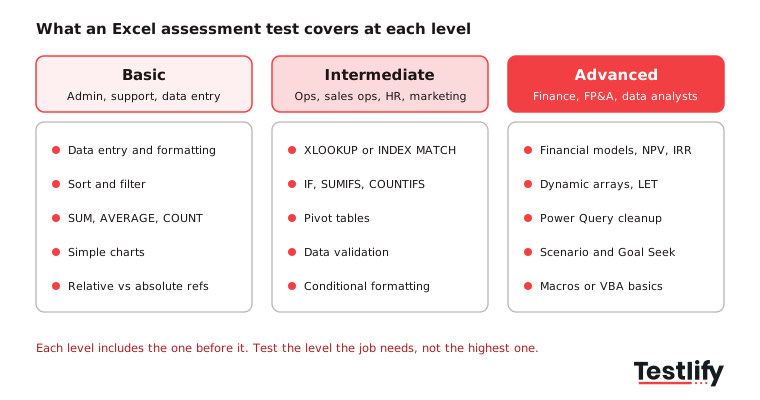
- Basic: entering and formatting data, sort and filter, SUM, AVERAGE and COUNT, simple charts, and relative versus absolute cell references. Suits admin, support and data entry roles.
- Intermediate: XLOOKUP or INDEX MATCH, IF with AND and OR, SUMIFS and COUNTIFS, pivot tables, data validation and conditional formatting. Suits operations, sales ops, HR and marketing roles.
- Advanced: financial models with NPV and IRR, dynamic array functions such as FILTER and UNIQUE, LET, Power Query clean-up, scenario analysis and Goal Seek, and basic macros. Suits finance, FP&A and data analyst roles.
Pro tip: Many ranking guides still list VLOOKUP as the headline intermediate skill. Accept it, but give equal credit for XLOOKUP or INDEX MATCH. XLOOKUP is the newer lookup in Microsoft 365, and both keep working when someone inserts a column.
Which Excel skills should you test for each role?
The Excel skills to test depend on the decisions the role makes with data. An accounts assistant needs clean, accurate entry and reconciliations. An FP&A analyst needs a model that holds up when assumptions change. Map each role to two or three real tasks, then choose the matching test level.
Role | Level | Tasks worth testing | Testlify test to start from |
|---|---|---|---|
Admin and executive assistant | Basic | Clean a contact list, format a report, sort and filter | Microsoft Excel (general) |
Accounts payable or receivable | Basic to intermediate | Reconcile two lists with XLOOKUP, flag mismatches, SUMIFS by supplier | Microsoft Excel simulation (intermediate) |
Operations and supply chain | Intermediate | Pivot stock data by site, build a reorder flag with IF | Microsoft Excel simulation (intermediate) |
Sales ops and marketing analyst | Intermediate | Summarise pipeline by rep, chart conversion by month | Microsoft Excel simulation (intermediate) |
Financial or FP&A analyst | Advanced | Build a 3-scenario forecast, NPV and IRR, sensitivity table | Financial Excel modeling |
Data or business analyst | Advanced | Power Query clean-up, dynamic arrays, dashboard-ready summary | Data analyst Excel |
Auditor | Intermediate to advanced | Sample and test transactions, spot errors in a workbook | Auditor Excel |
You can find each of these in the Testlify test library: the Microsoft Excel test, the intermediate Excel simulation, the financial Excel modeling test and the data analyst Excel test. For a deeper look at senior roles, see the guide to advanced Excel assessments.
Which Excel test format works best?
The best Excel test format for most roles is an in-app simulation, because candidates work in a real spreadsheet and the platform scores the result automatically. Multiple choice is faster but only proves a candidate knows about a feature. A file upload task is closest to the real job but needs a person to review it.
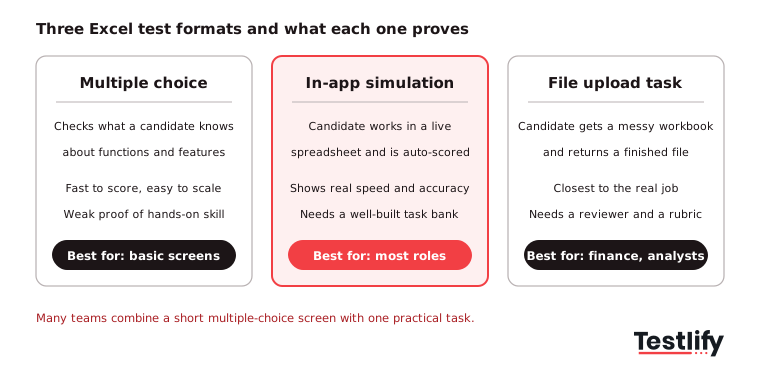
- Multiple choice: good for a 10-minute basic screen at high volume. A candidate can pass by recognising the right answer without being able to type it, so do not use it alone for analyst roles.
- In-app simulation: the candidate performs tasks in a simulated Excel or Google Sheets environment. You see accuracy and speed, and scoring is automatic, so it works at volume.
- File upload task: the candidate downloads a messy workbook and returns a finished file. This is the strongest test for finance and analyst roles, where how the model is built matters as much as the final number. Testlify supports this with Excel file upload questions.
Many teams combine formats: a short multiple-choice screen for everyone, then one practical task for the candidates who pass. That keeps the candidate's time reasonable and saves reviewer time for the strongest applicants. Practical work also pays off after the hire: SHRM's skills-first research found that organisations using project-based assessments were more likely to report low or very low turnover (46% versus 34%).
How do companies run an Excel assessment test, step by step?
Companies run an Excel assessment test in five steps: list the spreadsheet tasks the role really does, pick the level and format, set a timed test that every candidate takes in the same way, score it against a rubric agreed in advance, and use the interview to ask candidates how they solved one task.
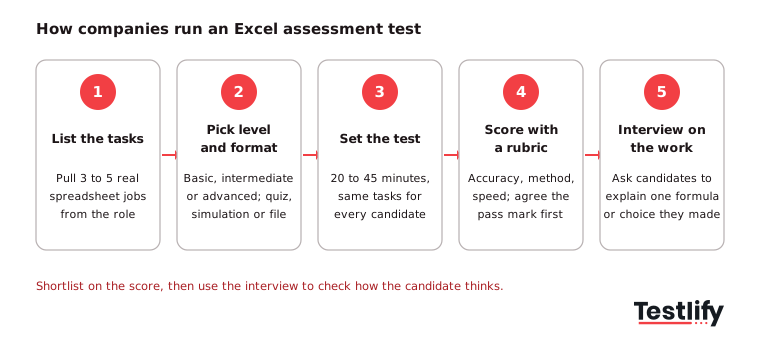
- List the tasks: ask the hiring manager for three to five spreadsheet jobs a new hire does in the first month. Turn those into test tasks. Plenty of employers do this in house: NACE's Job Outlook 2025 survey found close to 40% of employers using skills-based hiring use assessment tools they created themselves.
- Pick level and format: match the level to the tasks (see the table above) and choose multiple choice, simulation or a file task.
- Set the test: keep it to 20 to 45 minutes. Published Excel tests from assessment vendors mostly run between 15 and 40 minutes, and a longer test asks a lot of a candidate who has not met you yet. Send it right after the application or the first screening call.
- Score with a rubric: decide what a pass looks like before results arrive. Auto-scored tests give a percentage and a per-skill breakdown; file tasks need the rubric in the next section.
- Interview on the work: in the interview, open the candidate's file and ask them to explain one formula or one choice. This takes five minutes and shows whether the work was their own.
If your roles need different tasks from the off-the-shelf tests, this guide on how to tailor Excel assessments to your company shows how to adapt them.
How should you score an Excel skills test?
An Excel skills test should be scored on accuracy first, then method, then speed. A correct total built on a hard-coded number is a risk in a live file, so the rubric should reward formulas that still work when the data changes, not just the right answer on the day.
Criterion | What good looks like | Weight |
|---|---|---|
Accuracy | Final figures match the answer key | 40% |
Method | Formulas, not typed values; correct absolute references; no circular errors | 30% |
Structure | Clear labels, inputs separated from calculations, readable layout | 15% |
Speed | Finished within the time limit | 15% |
Set pass marks by level and by role, not one number for everyone. One workable approach is a higher bar for basic tests (for example 70%) than for advanced ones (for example 60% to 65%), since advanced tasks are harder to finish in the time. Review the bar after the first 20 to 30 candidates, once you can compare scores with interview results. Keep a record of how you set each pass mark; it helps when a hiring manager or a candidate asks why someone did not move forward.
Key takeaway: Agree the rubric and the pass mark with the hiring manager before the test goes live. Changing the bar after you see the scores is how bias gets back into a skills-based process.
Should an Excel test check Copilot and AI skills?
An Excel test for 2026 roles should include at least one AI task, because many candidates will use Copilot in Excel on the job. The useful skill is not prompting; it is checking. Microsoft's own Copilot in Excel guidance tells users to review, edit and verify anything Copilot creates.
Two simple ways to test it:
- Spot the error: give the candidate a formula "suggested by an AI assistant" that has one wrong range or a wrong lookup column, and ask them to find and fix it.
- Explain the output: show an AI-written summary of a data set and ask the candidate which numbers they would check before sending it to a manager, and how.
These tasks also make the test harder to game with an AI tool, because the candidate has to judge an answer rather than produce one.
How do you keep a remote Excel test fair and cheat-resistant?
A remote Excel test stays fair when every candidate gets the same tasks, the same time and clear instructions, and when integrity checks run quietly in the background. Fairness also means testing only the skills the job needs, so a strong admin candidate is not rejected for not knowing macros.
- Tell candidates what to expect: the level, the time limit and the kind of tasks. A short practice question lowers anxiety and reduces drop-off.
- Randomise and time it: question pools and time limits make answer sharing much less useful.
- Use proctoring that fits the role: Testlify includes 20+ proctoring checks, such as tab and copy-paste tracking, webcam snapshots and AI assistance detection. See anti-cheating and proctoring for the full list.
- Offer adjustments: extra time or a screen reader friendly format for candidates who ask for one.
- Check the work in the interview: the five-minute walk-through from step 5 is the best check of all.
What mistakes do companies make with Excel assessments?
The most common mistake is testing the wrong level: an advanced modelling test for a data entry role filters out good people and wastes their time. The second is never reviewing whether test scores line up with on-the-job performance. In the Testlify and SHRM Labs study, 44.5% of HR and TA leaders said no one formally validates their assessments.
Other mistakes worth avoiding:
- Trick questions: obscure shortcuts tell you little about real work.
- Unpaid take-home projects that run for hours: keep practical tasks under an hour.
- Score only, no context: look at the per-skill breakdown, not just the total.
- One test for every role: a finance analyst and a sales coordinator need different tasks.
For the business case behind these tests, see the benefits of using an Excel assessment in hiring. And once you have found strong candidates, keep the relationship going even when there is no open role; this guide on staying in touch with top talent explains how.
How does Testlify support Excel assessments?
Testlify supports Excel assessments with ready-made Excel tests, simulations and real file tasks in one platform. Hiring teams pick from 3,500+ tests in the test library, including Microsoft Excel tests at basic, intermediate and advanced levels, financial modelling, auditing, data analysis and Google Sheets.
- Excel and Google Sheets tasks: candidates answer inside the tools they will use, or upload a finished Excel file, one of 25+ question types.
- AI test builder: generate a role-specific assessment from a job description, then add your own Excel task.
- Scoring and reports: automated scoring with a per-skill breakdown, benchmarking and shareable reports.
- ATS sync: results flow into 100+ ATS and HRIS tools through Testlify integrations.
- Integrity: 20+ proctoring checks are included.
Ready to test Excel skills before the interview?
Pick the Excel test that matches your role, add one practical task, and send it to your next batch of applicants. Browse the Excel tests in the Testlify test library, or start a 7-day free trial with no credit card. Pricing is credit-based, so you only pay when a candidate starts an assessment. For enterprise volumes, book a demo.
Frequently asked questions (FAQs)

Content Writer
Yashika Khandelwal is a Content Writer with 3+ years of experience creating research-backed content on hiring, talent assessment, and HR technology. She is a registered Organizational Psychologist and subject matter expert who combines behavioral science with practical recruitment insights to produce accurate, evidence-based content.
LinkedInRelated resources
View all
Skill assessment
Professional Aptitude Tests for Students: 2026 Guide

Skill assessment
Tailoring aptitude tests for specific industries: Best practices

Skill assessment
Entry level aptitude test vs experienced hire tests: how to customize both

Skill assessment
Industry-Specific Skills Assessment: A Practical Guide

Skill assessment
The future of skills assessment: 8 trends for 2027 and beyond

Skill assessment
How to conduct a remote technical interview that hires the right engineers
Get started.
Hire on proof, not resumes.
Run your first skills-based assessment free — no credit card required.