
Top tools for running a system requirement check
Discover the best tools to run system diagnostics before online exams. Ensure smooth, fair, and failure-free assessments for all candidates.

One of the most overlooked risks is technical failure. A candidate may have the right skills, but if their device, browser, or network isn’t up to scratch, the exam experience suffers, decisions get delayed, fairness is compromised, reschedules happen, and your brand takes a hit. That’s why running a proper system diagnostic before an online exam is becoming essential for large organizations.
This guide will help you choose the right tools and confidently deploy them to ensure smooth, reliable exams.
 ChatGPT
 Gemini
 Claude
 Grok
Grok Perplexity
Why system diagnostics matter for online exams?
Before any online exam, even small technical glitches can derail an otherwise smooth experience. System diagnostics ensure that a candidate’s device, browser, and internet meet the required standards, preventing disruptions, ensuring fairness, and maintaining your organization’s credibility. It’s the foundation for a stress-free, reliable assessment process.
Minimizing technical risk
Imagine a candidate sitting down to take a proctored online exam. Their mic doesn’t pick up reliably, the browser crashes mid-test, Finder won’t open, the network drops, or the webcam is disabled. These issues are not just annoying; they can lead to invalid results, delays, or even rescheduled sitting. With a proper diagnostic tool, you can detect and fix these issues before exam day.
Ensuring fairness and candidate experience
For the candidate, a smooth experience builds confidence in your process. For your organization, it means all candidates are assessed under comparable conditions. If one candidate’s system fails while another’s doesn’t, fairness is compromised. A diagnostic ensures baseline readiness.
Operational cost savings and efficiency
When support tickets, reschedules, or aborted exams are reduced, you save time and cost. Large organizations with high-volume assessments especially benefit from scalable, automated checks rather than manual troubleshooting or surprise exam-day failures.
Reputation and trust
When your process is reliable, candidates and clients trust your organization more. Technical hiccups make both candidates and clients question the professionalism of the provider. A diagnostic process backed by the right tool helps maintain brand integrity.

What capabilities should a diagnostic tool have?
When you evaluate tools, here are the key capabilities to look for:
Hardware and system specification check
The tool should scan the candidate’s device for CPU, RAM, disk space, camera, microphone, and indicators of performance like load or latency. It helps ensure that the machine is capable of running the assessment software reliably.
Browser and OS compatibility check
Since most online exams run in browsers or secure browser environments, the tool must verify the OS version, browser version, any necessary plug-ins, whether camera/microphone permissions are enabled, and other software dependencies.
Network and connectivity diagnostics
This is critical: the tool should test download/upload speed, latency/ping, packet loss, stability over time, and optionally VPN/firewall issues. A network failure or high jitter can disrupt proctoring or real-time responses.
Security and environment check
If your exam uses a proctoring tool or secure browser, the diagnostic should verify installation, permissions, availability of screen sharing, recording, and whether other disallowed software is running. It may also check the environment, like battery status, multiple monitors, and power connection.
User-friendly report and remediation guidance
The best tools provide a clear pass/fail verdict but also list detailed components that failed or are marginal, with actionable remediation suggestions (e.g., “Please switch to wired internet”, “Update your browser to version X”, “Allow camera permission in browser settings”).
Scalability and integration
For large organizations, you’ll need the diagnostic tool to integrate with your assessment platform, applicant tracking system (ATS), or candidate portal. It should handle large volumes, provide reporting dashboards (pass/fail rates by region, device type, etc.), and support automation.
Data privacy and compliance
Because you are collecting device and system information from candidates, the tool must support data privacy standards (GDPR, etc.), be transparent about what information is collected, and provide secure storage and handling of results.
Accessibility and flexibility
Your candidates may use a variety of devices (Windows, Mac, possibly Chromebooks), networks, and geographies. The tool should adapt to different environments and provide accommodations for accessibility if required (e.g., screen reader compatibility).
How to select the right diagnostic tool?
Selecting the right tool isn’t just about features; it’s about fit for your organization. Here’s a selection process you can follow:
Define your requirements
What is your volume of candidates? Which geographies? What kinds of devices? Do you use proctoring or a secure browser? Define hardware, OS, and network thresholds. Also, define how and where you want to integrate (candidate portal, ATS, assessment platform).
Prioritise features
Based on your scenario, rank which capabilities matter most. For example, if your candidates are globally distributed with varying internet quality, network diagnostics are crucial. If you use proctoring, environment/camera checks become key.
Shortlist tools and run pilots
Choose 2-3 tools, run pilot tests with actual or representative candidates/devices. Evaluate usability, pass/fail clarity, candidate feedback, remediation guidance and integration ease.
Evaluate analytics and reporting
Check whether the tool gives you dashboards that show compatibility failure trends (by device type, browser, OS version, region). This helps you identify systemic issues and adjust your process.
Check vendor support, privacy, and cost
Ensure vendor offers good candidate support, transparent pricing, data privacy compliance, and scalability. Consider total cost, licensing plus support, plus integration.
Plan rollout and change management
Once selected, plan how you’ll onboard candidates, communicate requirements, provide support, and integrate into your assessment workflow. Decide whether it needs mandatory completion, retesting, or exceptions.
Top tools for running pre-exam system diagnostics
Now that we’ve covered what to look for, let’s review some of the leading tools you should consider. Note: While this is not an exhaustive list, it covers strong options with good features for large assessment organizations.
1. Testlify System Check Module
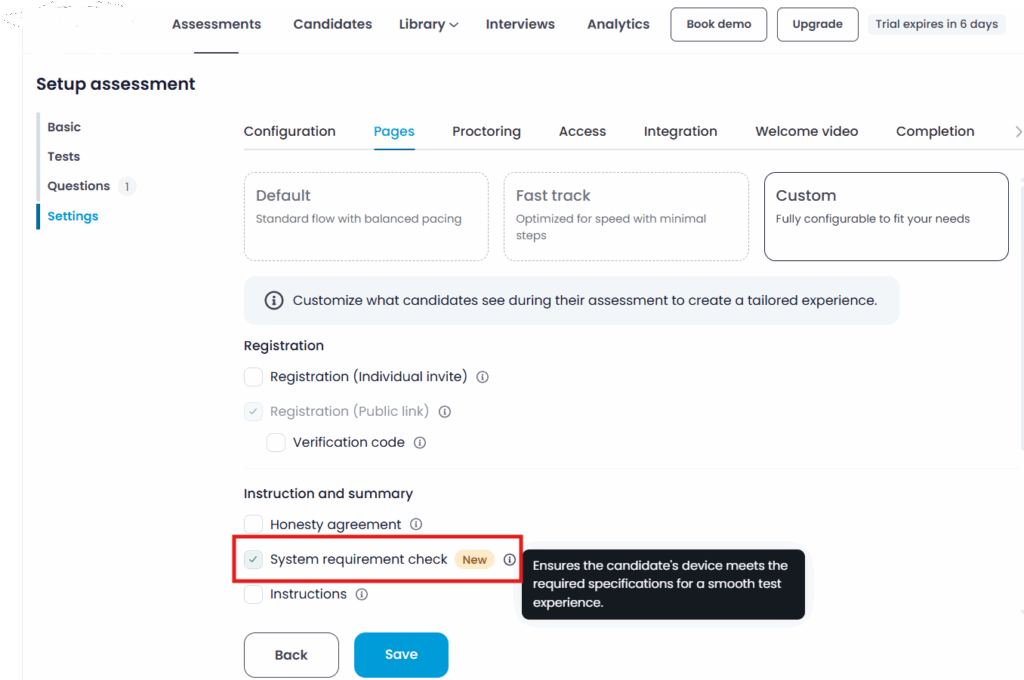
Testlify’s built-in system check module is purpose-built for candidate readiness. Their documentation shows how the tool tests hardware, browser, internet, and permissions, and provides a clear pass/fail result with remediation suggestions
Why it stands out:
- Designed for assessments and candidate journey, not just general diagnostics.
- Easy integration with assessment platform and candidate workflows (link-based check).
- Clear candidate-facing UI with guidance and remediation.
- Analytics capability to track failure causes and candidate readiness trends.
Considerations: If you already use Testlify, this becomes a native choice. If your assessment platform is different, check integration flexibility.
2. Harver System Diagnostics Module
While originally designed for remote-work hiring assessments, Harver’s System Diagnostics module offers a strong benchmark for readiness checks that translate well to exam-readiness.
Key features:
- Ability to set thresholds for hardware, OS, network, browser etc.
- One-click “System Checker” that runs on the candidate’s device.
- Analytics and pass/fail verdicts per component.
Why use it for exams: Though not exam-specific, the capability aligns with what you need. Integration may require a custom connector if you’re using a different assessment system.
3. Windows assessment toolkit (Windows AC/AS)
For organizations issuing devices or controlling environments (e.g., internal certification tests), Microsoft’s Windows Assessment Toolkit (part of the ADK) offers powerful diagnostics.
Strengths:
- Deep diagnostics of Windows systems (hardware, drivers, OS version, performance)
- Can be scripted and automated across machines
Limitations for public candidate-facing exams: It is heavier, requires setup, and is not as seamless for large remote candidate populations.
4. Standard Diagnostic Utilities Bundle (e.g., from Cyberly list)
For more ad-hoc or custom checks, there are many utilities: Windows Memory Diagnostic, CHKDSK, Performance Monitor, HWiNFO, Wireshark for network, etc.
Use case: If your organization has a bespoke environment or high candidate device variability, you might assemble your own diagnostic suite.
Why limited: These are less user-friendly for non-tech candidates and lack integrated reporting, candidate workflows, and remediation guidance.
5. Custom / In-house Diagnostic Solution
Some organizations build their own diagnostic modules (web-based) that check pre-defined criteria and integrate directly into candidate portals.
Pros: Fully aligned with your exam requirements, branded experience, customised thresholds, seamless ATS/assessment platform integration.
Cons: Higher upfront cost, build/maintenance overhead, need to support multiple OS/browsers, and candidate help support.
If you go this route, ensure you include all features listed earlier (hardware, browser, network, security, reporting).
Implementation best practices for diagnostic tools
Selecting the tool is one thing; deploying it effectively is another. Here are the best practices for implementation.
Communicate early and clearly
Send system requirement information in the exam invite. Use simple language, visuals, and screenshots. Provide instructions on how to run the diagnostic, fix common issues, and whom to contact for support.
Embed the diagnostic step early
Make system diagnostic a required step before issuing the exam link. Ideally 24-48 hours ahead. Remind candidates to run the check after any device/browser change.
Provide remediation support
For candidates who fail checks, provide clear next-step guidance: update browser, switch to wired network, allow camera/mic permission, reboot, close background apps. If viable, offer alternative devices or test centers.
Make retesting easy
After remediation, allow candidates to re-run the diagnostic without friction. The tool should periodically re-validate until exam day to catch last-minute changes.
Monitor failure trends
Use analytics from the diagnostic tool to identify common failure reasons (browser version, OS patch, network speed). Then update your communication or thresholds to reduce repeat issues.
Align with your assessment platform
Ensure once a candidate passes the diagnostic, the exam link is only issued. Consider blocking or flagging candidates who fail. Set up workflow alerts for support or retests.
Consider candidate experience and fairness
Ensure the diagnostic step isn’t punitive. Communicate that it’s for readiness and fairness. Offer assistance and reasonable accommodation rather than penalise candidates for failure without support.
Ensure data privacy and compliance
Clearly communicate what data is collected (system specs, network info, browser version etc.). Use encryption, store results securely. Include candidate consent if required by law or regulation.
Test and pilot the process
Before launch, pilot with sample candidates across geographies/devices. Spot UI issues, false failures, high friction. Refine the diagnostic tool and workflow accordingly.
Challenges and how to mitigate them
Even with the best diagnostic tools, real-world challenges like diverse devices, poor internet, or last-minute software updates can cause problems. Understanding these challenges and proactively addressing them helps you build a smoother, more inclusive system diagnostic process that supports every candidate’s success.
Candidate device diversity
With remote exams, candidates may use all kinds of devices, OS versions, and network types. Mitigate by specifying minimum but realistic requirements, offering fallback options (e.g., access from test centers), and making your diagnostic tool cross-platform.
Last-minute changes
Candidates may update browser or OS just before the exam and introduce failures. Mitigate by requiring a final diagnostic check shortly before exam launch, and clearly instructing candidates to avoid major updates near exam time.
Network variability by geography
Some candidates are in regions with weaker internet infrastructure. Mitigate by summarising network requirements clearly, advising wired connections, suggesting alternative location (e.g., coworking space) or scheduling a different time.
Candidate frustration or drop-off
If the diagnostic is too complex or fails too often, candidates may drop from the process. Mitigate by ensuring the tool is user-friendly, runs quickly, gives clear pass/fail and remediation, and your support team is accessible.
Integration work
If the diagnostic tool doesn’t integrate with your assessment or ATS systems, you risk manual work and process delays. Mitigate by choosing tools or custom solutions that allow data export, API integration, and workflow automation.
Final thoughts
In an environment where online and remote assessments are now the norm, system diagnostic tools are no longer optional they are foundational. They provide readiness assurance, fairness, candidate satisfaction, operational reliability and cost savings.
Choosing the right tool, one that checks hardware, browser, network, security and gives actionable remediation, and embedding it into your workflow can dramatically reduce exam failures and disruptions.
Whether you adopt a built-in module (like Testlify’s), integrate a third-party solution, or build your own, ensure you pair it with clear communication, accessible support, analytics for improvement and candidate-centric design. The result will be a more professional, trustworthy assessment process that works at scale.
If you’d like help evaluating specific tools, designing your diagnostic workflow, or creating candidate-facing communication and training, I’d be happy to assist further.

Content Writer
Yashika Khandelwal is a Content Writer with 3+ years of experience creating research-backed content on hiring, talent assessment, and HR technology. She is a registered Organizational Psychologist and subject matter expert who combines behavioral science with practical recruitment insights to produce accurate, evidence-based content.
LinkedInRelated resources
View all
Remote hiring
Fostering team cohesion and engagement in a remote workforce

Remote hiring
How remote hiring is reshaping the global workforce landscape

Remote hiring
Remote Hiring Tools: Build Your 2026 Hiring Stack

Remote hiring
How to overcome geographical and cultural barriers in remote hiring

Remote hiring
5 practical ways to evaluate job candidates remotely
Remote hiring
The role of communication in remote job interviews
Get started.
Hire on proof, not resumes.
Run your first skills-based assessment free — no credit card required.