
How to conduct system compatibility check to prevent assessment failure?
Prevent online exam failures with a system compatibility check. Learn what to test, how to prepare, and ensure a smooth assessment experience.

In remote/online assessment environments, even small technical glitches can derail the exam experience, for candidates, for HR, and for your employer brand. A well-designed system compatibility check can drastically reduce assessment failures, improve fairness, and elevate trust in your evaluation process.
This guide gives you everything you need: what to check, how to plan, how to communicate, and best practices to implement a robust compatibility check process.
 ChatGPT
 Gemini
 Claude
 Grok
Grok Perplexity
Why compatibility checks matter
Ensuring exam integrity and reliability
If a candidate’s webcam, browser, or internet fails, part of the exam may be compromised or unfairly penalized.
Proctoring tools often rely on certain system features; if missing, the exam platform may refuse to launch or record correctly.
Improving candidate experience
Nothing frustrates candidates more than “I couldn’t join the exam”, “my mic didn’t work”, or “my browser crashed”.
Early warning leads to correction ahead of time, reducing anxiety and last-minute support issues.
Operational efficiency and scalability
Without compatibility checks, support desks get flooded with issues on exam day. Rescheduling or cancelling exams because of incompatible systems costs time and money.
Maintaining reputation and fairness
Formal assessments, certification exams, or hiring tests reflect on your organization. Consistent failures imply poor planning.
Fairness demands that all candidates are provided a platform that supports them equally; not having a compatibility check may lead to disparity, especially for candidates in diverse setups or geographies.

What “system compatibility” covers?
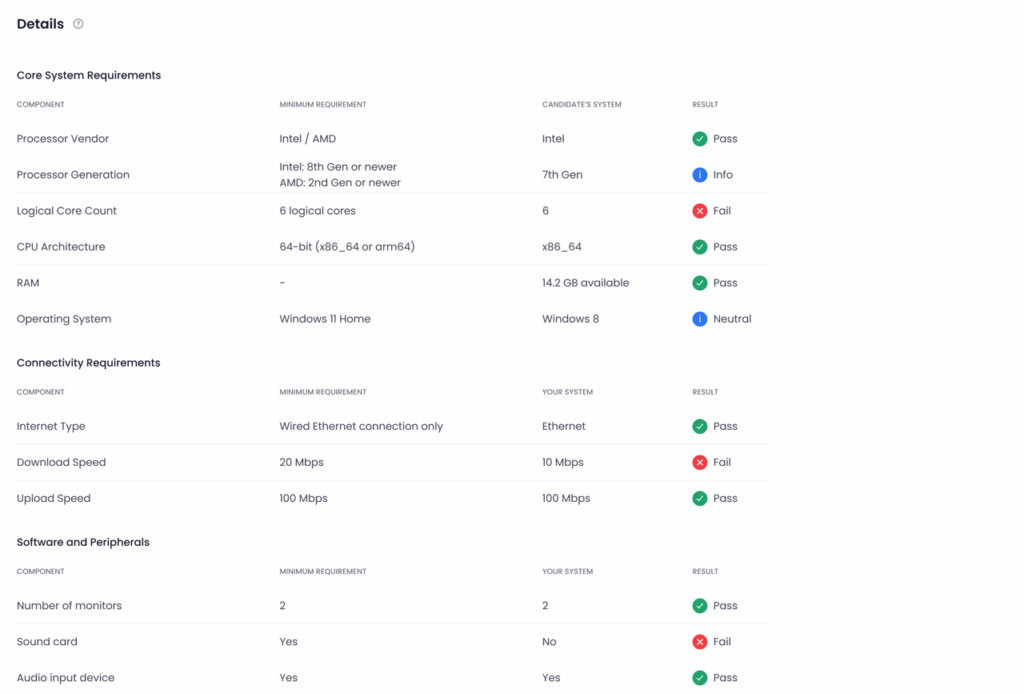
When we say “compatibility check,” we mean: verifying that the candidate’s system (hardware, software, connectivity, environment) meets minimum technical requirements and policies to successfully take the exam without errors. This typically includes:
- Hardware (CPU, RAM, webcam, mic, screen)
- Operating System and Software Versions
- Browser and Permissions
- Network speed, stability, and configuration
- Proctoring / Secure Browser / Tools that the exam requires
- Physical setup and environment (quiet, lighting, power)
Key components of a compatibility check
Here’s a breakdown of what to test , you can assemble a checklist out of these. Depending on the exam type (proctored, timed, performance test, video component etc.), some items may be more critical than others.
Component | What to check | Why it’s important |
|---|---|---|
Hardware / Device specs | CPU speed, number of cores; amount of RAM; disk free space; SSD vs HDD; whether webcam, mic exist and function; external microphone/headset; single screen or multiple. | Minimum download/upload speed; low latency; minimal packet loss and jitter; stable connection; avoiding VPNs / firewalls/proxies that interfere; testing upload of audio/video. |
Operating system and software | Supported OS versions (Windows, macOS, etc.); latest OS patches; installed software required by exam; background apps that may interfere; correct timezone settings; system date/time accuracy. | Under-powered device = lag, freezes. Poor webcam / mic = proctoring issues or miscommunication. Multiple monitors are sometimes disallowed. |
Browser and permissions | Supported browsers and versions; pop-ups enabled; camera/mic permissions; disabling conflicting extensions; enabling required plug-ins; correct browser privacy settings. | Many exam platforms run in browser. Browser misconfigurations are common failure points. |
Network / Connectivity | Minimum download/upload speed; low latency; minimal packet loss and jitter; stable connection; avoiding VPNs / firewalls / proxies that interfere; testing upload of audio/video. | Poor network causes dropped video, mis-syncing with proctor, or failing to upload submissions. |
Proctoring / Secure browser / Exam tools | Secure browser installed (if needed); proctoring software or plug-in working; ability to record video/audio; identity verification tools; limitations on screen sharing or multiple screens. | Many organizations require controlled exam environments. These tools must be validated in advance. |
Environment and physical setup | Quiet room; good lighting; no distracting background noise; reliable power source (battery charged or plugged in); ensuring the same setup candidate will use on exam day. | Physical distractions or lighting/sound issues can impact concentration or violate proctoring policy. |
User permissions and security | Permissions to use camera, mic; no active screen recorders or remote-control tools; firewall or antivirus settings that may block required exam features; disk encryption if required. | Many exam platforms run in a browser. Browser misconfigurations are common failure points. |
Steps to implement compatibility checks
Here’s a detailed process for organizations to embed system compatibility checks before exams.
Step 1: Define minimum and recommended requirements
Collaborate between the assessment team, IT, security, and HR to define minimum and “ideal” specs.
For example:
- Minimum: 4 core CPU, 8GB RAM, webcam + mic, stable 5 Mbps internet, browser X or Y (latest version), OS patch at least within last 6 months.
- Recommended: better webcam, more RAM, higher speed, etc.
Define what is disqualifying vs what is fixable with candidate remediation.
Step 2: Choose or develop a compatibility check tool
Either build an in-house tool or adopt/subscribe to third-party ones. Tool should automatically check as many components as possible (hardware, browser, permissions, network).
Should provide clear, actionable feedback. Consider platform integrations (assessment platform, applicant tracking system, etc.).
Step 3: Communicate Clearly
Provide instructions: which system, OS, browser versions are supported; how to check permissions; what to do if something fails. Provide visuals or videos for guidance. Support channels: help desk, FAQs, or chat support in case candidates face issues.
Step 4: Provide Remediation / Supported Fixes
When the check fails, present specific, actionable guidance e.g.:
- How to update browser
- How to give permissions for the mic/camera
- Suggest switching networks or a wired connection
- Suggest using a different device if available
Offer technical support and optionally loan devices or equipment if feasible for your candidate pool.
Step 5: Confirm and log results
Once the candidate fixes the issues, allow a retest of compatibility. Log results in your system, tie to candidate ID, store for audit purposes.
For failed checks that couldn’t be remediated in time, decide policy on whether the exam will be postponed or alternative arrangements made.
Designing the candidate experience and communication
Good tools are only half the story; how you communicate and engage with candidates is equally important.
Early and transparent communication
Job post or exam invitation should list system requirements clearly. Tell candidates up front about the compatibility check and timeline. Emphasize what happens if they don’t meet the requirements, but also that help/support exists.
User-friendly instructions and interface
Use plain language, avoid jargon. Show screenshots/video demos showing what permissions look like, what browser settings should be. Possibly provide a small “quick check” versus a full check so candidates can gauge.
Gentle reminders and deadlines
Reminders ahead of exam date: “Check your system now to avoid last-minute issues.” Suggest performing a compatibility check at least 24-48 hrs ahead, with another just before.
Support infrastructure
FAQ’s for common problems (browser issues, audio/video not working, low internet speed). Live chat or help desks ready to resolve issues. Knowledge base articles with step-by-step for fixing common failures.
Feedback loop
Let candidates report issues that weren’t caught in the compatibility check. Use candidate feedback to refine the check tool, requirement list, and communication materials.
Tracking, remediation, and support
Logging and analytics
Capture which components fail most often (browser version? mic? internet?). Segment by geography, device type, browser. Monitor time taken between reporting a failure and resolution.
Remediation workflow
Define severity levels: critical vs non-critical. Some failures may disqualify; others can be remedied. Assign responsible parties: candidate, IT support, or third-party.
Provide clear timelines: e.g., “Fix within 12 hours of failure” or “At least 2 hours before exam.”
Alternate plans and contingencies
Offer alternative devices or locations (e.g. test centers) for candidates who cannot fix technical gaps.
Allow rescheduling when failures are due to incompatible hardware or network issues beyond candidate’s control.
Pre-exam day checks
On exam day, have a final pre-launch check in the exam environment. Many organizations require verifying again mic/cam, connection, secure browser.
Policies and governance
Large organizations need formal policies to ensure consistency, security, and fairness.
Minimum standards vs exceptions
Define what is the minimum required, and what is “recommended but not mandatory.” Policy for exceptions (loan devices, alternative arrangements).
Data privacy, consent, and security
The compatibility check tool will collect system metrics. Communicate what is collected and why. Ensure data is stored securely, with limited access. Comply with relevant laws (GDPR, data protection).
Equity and accessibility
Accessibility accommodations: candidates with disabilities may need special tools or settings.
System check should account for varied internet infrastructure (by region) and avoid excluding people unnecessarily.
Rules for proctoring / Secure browser
If you enforce a secure browser or proctoring software, policy must cover: approved software versions, privacy implications, user permissions, what happens if proctoring fails.
Common pitfalls and how to avoid them
Even with the best planning, organizations can face several challenges while conducting system compatibility checks. Below are the most common pitfalls and how you can prevent them.
Overly strict requirements
Sometimes, organizations set technical requirements that are too high for the average candidate. Expecting everyone to have high-end devices or ultra-fast internet can lead to unnecessary test failures and exclude capable candidates. To avoid this, clearly define both minimum and recommended specifications, and allow for exceptions or alternative arrangements when possible.
Poor communication
A common reason for compatibility issues is unclear or incomplete instructions. If candidates don’t know what they need to prepare, or if your directions are filled with technical jargon, confusion is inevitable. Use simple, easy-to-follow guides with visuals and send timely reminders. The goal is to make the process foolproof and candidate-friendly.
Non-user-friendly check tools
Even the best technology can fail if it’s not intuitive. If your system check tool is slow, buggy, or difficult to navigate, it will frustrate candidates and increase support requests. Always test your tool internally before launch, pilot it with a small user group, and refine it based on feedback. A clean, simple interface can make a big difference.
Not accounting for updates
Operating systems and browsers frequently update, and sometimes these updates break compatibility settings. Ignoring this can result in last-minute issues during the actual exam. Include a final pre-exam check within the testing platform and remind candidates to avoid installing major updates just before the exam.
Browser and permission issues
Many exam failures happen because of browser settings, blocked pop-ups, disabled camera or mic permissions, or background applications interfering with the system. To prevent this, share clear, step-by-step instructions with screenshots or demo videos that show how to enable required permissions. Encourage candidates to test these well in advance.
Network variability
Unstable Wi-Fi or poor internet quality is one of the biggest disruptors of online exams. Candidates in different locations may face inconsistent speeds or frequent drops. Recommend using a wired internet connection wherever possible. Provide a minimum required speed benchmark and suggest backup options like mobile hotspots if needed, but discourage relying solely on them.
Ignoring the environment and setup
Technical readiness isn’t just about the device and software, the environment matters too. Poor lighting, noisy surroundings, or distractions can affect performance or even trigger proctoring flags. Advise candidates to prepare a quiet, well-lit space for their exam. A short mock test can help them check their video and audio setup in advance.
Measuring success: KPIs and metrics
A system compatibility check isn’t a one-time technical step , it’s an ongoing process that evolves with every assessment cycle. To ensure it’s actually preventing exam failures and improving efficiency, organizations need to measure its effectiveness using the right performance indicators.
Tracking these metrics not only highlights areas that need improvement but also helps justify the investment in pre-exam system diagnostics. Here’s how to assess the success of your compatibility check program.
Compatibility check completion rate
This metric shows how many candidates actually complete the system compatibility test before their exam. A low completion rate may indicate poor communication, unclear instructions, or lack of candidate awareness.
How to improve it:
- Send reminders a few days before the exam.
- Highlight the importance of running the check in all exam-related emails.
- Make the system check link prominent and accessible from any device.
An ideal target for large-scale assessments is a 90–95% completion rate, ensuring most candidates verify readiness ahead of time.
First-time pass rate
The first-time pass rate measures how many candidates pass the compatibility check without needing to fix anything. It’s a strong indicator of how aligned your exam requirements are with real-world candidate setups.
If the number is low, you might be setting the bar too high or not communicating requirements clearly enough.
Goal: Aim for at least 75–80% of candidates to pass on their first attempt.
Optimization tip: Review the most common failure causes and adjust your communication or technical requirements accordingly.
Common failure components
Every system check produces valuable diagnostic data , such as how many candidates failed due to slow internet, outdated browsers, or disabled camera permissions.
Identifying recurring patterns helps your IT and assessment teams address the most frequent bottlenecks. For example:
- If many fail due to browser issues, update your platform’s browser support or add clearer browser-specific instructions.
- If webcam or mic issues dominate, provide a short video guide showing how to enable permissions.
Over time, tracking these patterns creates a feedback loop for continuous improvement.
Time to remediation
This KPI measures how quickly candidates fix detected issues after a failed check. A long remediation time often signals a lack of clarity in the instructions or insufficient technical support.
What to aim for: Most candidates should be able to resolve issues within 24 hours of running the check.
Ways to reduce resolution time:
- Automate fix suggestions (e.g., “update your browser” with direct links).
- Provide 24/7 chat or email support.
- Send follow-up reminders if the check remains incomplete.
Support ticket volume
Support tickets are a direct reflection of how well your compatibility check process works. If you see a surge in technical support queries close to exam day, your check process might be missing key pain points.
What to monitor:
- Volume and timing of tickets related to login, browser, or connection issues.
- Repeated complaints about the same issue (a sign your documentation or tool needs improvement).
Goal: Reduce support requests on exam day by at least 40–60% compared to periods without a pre-exam system check.
Exam day failures or disruptions
Ultimately, the goal of running a compatibility check is to minimize exam-day technical failures. Monitor how many exams are delayed, interrupted, or rescheduled due to system issues.
If disruptions still occur frequently, analyze whether:
- Candidates skipped or ignored the compatibility check.
- The check didn’t account for last-minute software or network changes.
- The issue was environmental (e.g., power or lighting) rather than technical.
Over time, your compatibility check should lead to a measurable decline in exam-day disruptions, improving reliability and brand credibility.
Candidate satisfaction
Technical readiness impacts overall candidate experience , and a smooth system check creates a positive first impression of your assessment process.
After the exam, ask candidates about:
- How easy it was to complete the compatibility check.
- Whether the instructions were clear.
- If they faced any difficulties launching the test.
A short post-assessment survey (one or two quick questions) is enough to gather actionable insights. Aim for an 80%+ satisfaction score regarding ease of setup and technical readiness.
Cost of rescheduling and follow-ups
Every failed exam costs time and money , from rescheduling and candidate frustration to reputational damage. Tracking these hidden costs helps quantify the ROI of having a system compatibility check in place.
Metrics to track:
- Number of rescheduled exams due to technical issues.
- Time spent by your support or HR teams in manual troubleshooting.
- Candidate drop-off rate caused by poor technical experiences.
Organizations that implement a robust compatibility check often report a 30–50% reduction in operational costs related to exam disruptions.
Using dashboards for visibility and reporting
To make these metrics actionable, visualize them in dashboards accessible to your HR, IT, and assessment operations teams. Real-time insights help decision-makers respond proactively , for instance, flagging regions or devices with frequent compatibility issues.
Dashboards can display:
- Live completion and pass rates.
- Common causes of system check failures.
- Candidate satisfaction trends.
- Regional or device-based performance variations.
This not only enhances oversight but also demonstrates accountability and transparency in how the organization manages digital assessments.
Continuous improvement through data
Treat these KPIs as part of a continuous improvement cycle. Regularly review your data after each major exam round to refine instructions, update requirements, or improve tool performance.
A compatibility check is not just about avoiding failure it’s about building a reliable, candidate-friendly ecosystem that reflects professionalism and care in your hiring or testing process.
Conclusion
Conducting system compatibility checks before exams is not just technical overhead, it’s a crucial part of exam delivery that ensures fairness, reliability, and smooth user experience. For large organizations, embedding it into your assessment process means fewer surprises, better candidate satisfaction, and stronger reputation.
By defining clear minimum and ideal technical requirements, building or adopting an automated tool, communicating early and clearly, providing remediation support, and tracking results, you can prevent assessment failures and elevate the quality of your exam programs.

Content Writer
Yashika Khandelwal is a Content Writer with 3+ years of experience creating research-backed content on hiring, talent assessment, and HR technology. She is a registered Organizational Psychologist and subject matter expert who combines behavioral science with practical recruitment insights to produce accurate, evidence-based content.
LinkedInRelated resources
View all
Remote hiring
Top tools for running a system requirement check
Remote hiring
Fostering team cohesion and engagement in a remote workforce

Remote hiring
How remote hiring is reshaping the global workforce landscape
Remote hiring
Remote Hiring Tools: Build Your 2026 Hiring Stack
Remote hiring
How to overcome geographical and cultural barriers in remote hiring

Remote hiring
5 practical ways to evaluate job candidates remotely
Get started.
Hire on proof, not resumes.
Run your first skills-based assessment free — no credit card required.