
Excel collaboration assessment: how to test teamwork in a spreadsheet
A practical way to test collaboration in Excel: build a shared workbook task, pick async or live, and score teamwork with a clear rubric.

An Excel collaboration assessment is a timed spreadsheet task that shows how a candidate works with other people's data, not just how well they write formulas. The candidate picks up a workbook that "teammates" have started, finds where their inputs disagree, fixes what they own, records what they changed, and hands it on with a clear note. You score the Excel work and the collaboration behavior separately against the same rubric for every candidate.
 ChatGPT
 Gemini
 Claude
 Grok
 Perplexity
TL;DR
- An Excel collaboration assessment hands candidates a half-finished shared workbook and scores how they reconcile, document and hand off the work, not only the formulas.
- A spreadsheet shows collaboration behaviors you can check: notes left for others, conflicts flagged instead of overwritten, changes logged and a clear handoff message.
- Use an async handoff task for screening at volume and a short live co-editing session for finalists. Most teams need both.
- Score Excel accuracy and collaboration on separate lines. A sample weighting is 25% accuracy and 75% across four collaboration behaviors.
- Plant three or four realistic conflicts in the workbook, such as two versions of one figure. How a candidate handles them is the clearest signal you get.
- Keep the task to 30 to 45 minutes, give every candidate the same file, brief and time limit, and debrief the choices in the interview.

What is an Excel collaboration assessment?
An Excel collaboration assessment is a work-sample test where a candidate continues a spreadsheet other people have built and is scored on how they work with that shared file. The test checks formulas and accuracy, but also whether the candidate respects the structure, resolves conflicting inputs, documents changes and leaves the file ready for the next person.
Most Excel tests stop at technical skill: lookups, pivot tables, charts. A standard Microsoft Excel simulation test tells you whether someone can do the work alone. A collaborative Excel task adds the part that breaks teams in practice: the analyst who silently overwrites a colleague's numbers, renames tabs that feed a report, or sends a file with no explanation.
If you came here asking how to use Excel assessments to test collaboration, the short answer is: design the task so collaboration is required to finish it, then score what the candidate leaves behind in the file.
Which collaboration skills can a spreadsheet task show?
A spreadsheet task can show five collaboration skills directly in the file: reading and respecting other people's work, reconciling conflicting inputs, documenting changes, communicating a handoff and asking for clarity when an instruction is vague. Personality traits and live conflict handling need an interview or a situational test as well.
Collaboration skill | What you see in the workbook | Strong signal | Weak signal |
|---|---|---|---|
Respecting shared structure | Tabs, named ranges and formats left intact | Adds a new column or tab instead of rebuilding | Renames or deletes tabs other sheets depend on |
Reconciling inputs | How two conflicting figures are handled | Flags the conflict, picks a source and says why | Overwrites one figure without a note |
Documenting changes | A change log, cell comments or a notes tab | Each change has who, what and why | No record of what changed |
Handoff communication | The message sent with the file | Three or four lines: what is done, what is open, what to check | "Done, see attached" |
Asking for clarity | Questions logged on an unclear instruction | States the assumption made and the question to confirm | Guesses silently |
LinkedIn's hiring guide on how to assess for collaboration describes the same behaviors from the interview side: a clear personal role inside a shared result, constructive handling of disagreement and knowing when to hold a position. The workbook lets you see those behaviors in actual work instead of a story.
For the wider case on why these skills matter in hiring, see assessing teamwork skills in recruitment.
Why test collaboration inside a spreadsheet?
Testing collaboration inside a spreadsheet works because spreadsheets are where many hybrid teams actually collaborate. Finance, operations, sales ops and analyst roles pass the same files back and forth every week, so a shared-workbook task mirrors the job and produces evidence you can score, not opinions from a conversation.
Hybrid work keeps that handoff work high. Gallup's 2025 hybrid work data shows 51% of remote-capable US employees still work hybrid, so much of their teamwork happens through shared files rather than in a room.
Employers also rank these skills highly. According to the World Economic Forum's Future of Jobs Report 2025, nearly 70% of employers see analytical thinking as a core skill, and 61% name leadership and social influence. The same report expects 39% of workers' core skills to change by 2030. A collaborative Excel task tests the analytical skill and the people skill in one sitting.
There is a practical reason too. Behavioral questions about teamwork invite rehearsed answers. A planted conflict in a workbook does not: the candidate either flags it or overwrites it.
How do you use Excel to test collaboration, step by step?
Using Excel to test collaboration takes six steps: pick the behaviors the role needs, build a realistic workbook with planted conflicts, write a brief that names the teammates and the deadline, choose an async or live format, score with a written rubric, and debrief the candidate's choices in the interview.
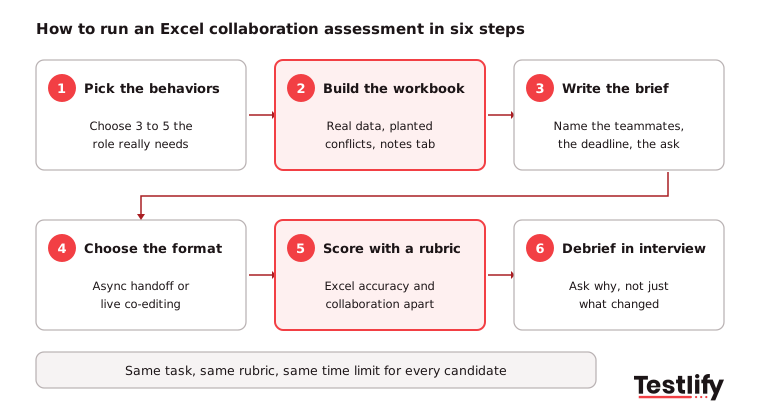
- Pick the behaviors: Choose three to five collaboration behaviors from the table above that the role uses every week. A financial analyst needs reconciliation and documentation. An operations coordinator needs handoff notes and clarity questions.
- Build the workbook: Use real-looking data from your own work, anonymized. Add a notes tab, a tab "owned" by a teammate that the candidate should not edit, and three or four planted conflicts.
- Write the brief: Name the fictional teammates and what each one owns, state the deadline and say who receives the file next. A good brief reads like a message from a manager, not an exam paper.
- Choose the format: Run it as an async handoff for screening or as a live co-editing session for finalists (compared in the next section).
- Score with a rubric: Score Excel accuracy and each collaboration behavior on separate lines, 1 to 5, against written anchors. Two reviewers score independently, then compare.
- Debrief in the interview: Ask the candidate to walk through one conflict they found and why they resolved it that way. The reasoning matters as much as the result.
Pro tip: Do not tell candidates the conflicts are there. Do tell them the file came from colleagues and goes to a manager next. That framing is enough for strong candidates to check other people's work.
Should the task be an async handoff or a live co-editing session?
The task should be an async handoff for early screening and a live co-editing session for the final stage. An async handoff scales to hundreds of candidates and gives everyone the same file and time limit. A live session shows real-time communication but costs an interviewer's time per candidate.
Async handoff task | Live co-editing session | |
|---|---|---|
Best stage | Screening, high volume | Final round, two or three finalists |
What it shows | Documentation, reconciliation, handoff writing | Real-time communication, questions, pace under observation |
Interviewer time | Review only, about 10 minutes per candidate | 30 to 45 minutes live per candidate |
Consistency | Same file, brief and timer for everyone | Depends on how the interviewer plays the teammate |
Tooling needs | An assessment platform with a spreadsheet question | Microsoft 365 co-authoring or Google Sheets, plus a video call |
Main risk | Candidate gets outside help | Nervous candidates underperform; interviewer drift |
Live sessions in Excel have tool limits worth planning for. Microsoft's support documentation says co-authoring needs a Microsoft 365 version of Excel and a file stored on OneDrive or SharePoint, and that when two people change the same cell, the last saved change generally wins. Give the interviewer and the candidate separate areas of the sheet, and use Show Changes or Version History afterwards to see exactly who edited what.
What does a sample Excel collaboration task look like?
A sample Excel collaboration task gives the candidate a quarterly sales workbook that two colleagues started, asks them to finish the regional summary for a manager, and hides four conflicts in the data. The candidate has 40 minutes and must submit the file plus a short handoff note.
The brief: "Priya built the raw data tab and Marco started the regional summary before going on leave. Finish the Q3 regional summary so Dana can present it tomorrow. Do not change Priya's raw data tab. Send Dana the file with a short note."
What is in the workbook:
- Raw data tab (owned by Priya): 600 order rows with region, rep, date and amount.
- Summary tab (started by Marco): Totals for two of the four regions, built with formulas that reference the raw data.
- Notes tab: Two older comments from Marco, one of which says "EMEA figure confirmed with finance: 1.42M."
The four planted conflicts:
- Duplicate rows: Eight orders appear twice in Priya's tab. A strong candidate flags them in the notes rather than deleting rows in a tab they do not own.
- Two versions of one number: The EMEA total from the formulas does not match Marco's "confirmed" 1.42M note. A strong candidate reports both and names the source they used.
- A broken reference: One of Marco's formulas points to the wrong column. A strong candidate fixes it and logs the fix.
- A vague instruction: "Show growth" does not say growth versus what. A strong candidate states the assumption (for example, Q3 versus Q2) and asks Dana to confirm.
What a strong handoff note looks like: "Dana, summary is done for all four regions. Two things to check: eight duplicate orders in the raw data (listed in Notes, not removed, Priya owns that tab) and an EMEA gap between the formula total and Marco's 1.42M note. I used the formula total. Growth is Q3 versus Q2; tell me if you wanted year on year."
How do you score an Excel collaboration assessment?
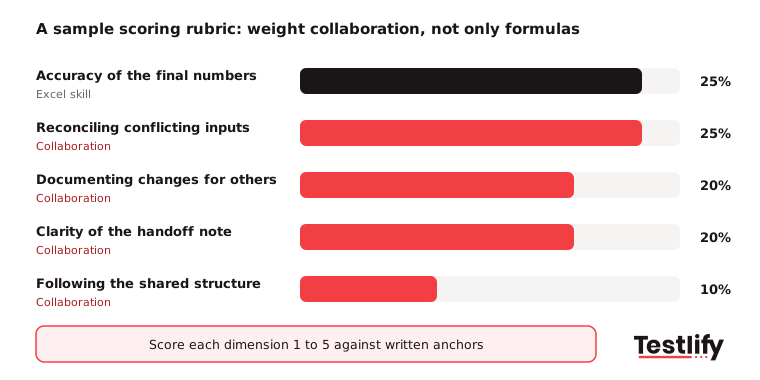
Scoring an Excel collaboration assessment works best with a five-line rubric: one line for accuracy of the numbers and four for collaboration behaviors, each scored 1 to 5 against written anchors. Weight collaboration at roughly 75% when collaboration is the reason for the test, and keep the weights the same for every candidate in the role.
Dimension | Weight | 1 (weak) | 3 (meets the bar) | 5 (strong) |
|---|---|---|---|---|
Accuracy of the final numbers | 25% | Totals wrong, broken formulas left in | Totals right, minor formatting slips | Totals right, references fixed and checked |
Reconciling conflicting inputs | 25% | Overwrites or ignores conflicts | Finds some conflicts, resolves without saying how | Finds most conflicts, names the source used and why |
Documenting changes | 20% | No record of changes | Some changes noted | Every change logged with what and why |
Handoff note | 20% | No note, or "done" | Says what is done | Says what is done, what is open and what to check |
Respecting shared structure | 10% | Edits owned tabs or renames sheets | Leaves structure mostly intact | Works around owned areas, adds rather than rebuilds |
Three habits keep scores fair. Write the anchors before anyone takes the test. Have two reviewers score blind to each other, then discuss gaps of two points or more. Compare the rubric total with a short collaboration test score so one task never carries the whole decision.
What mistakes weaken an Excel collaboration test?
The mistakes that weaken an Excel collaboration test are testing advanced formulas instead of teamwork, scoring only the final number, making the task too long, giving candidates different files and skipping the debrief. Each one turns a collaboration test back into a plain Excel test or makes results hard to compare.
- Testing formula tricks: If the task needs array formulas or macros the job does not use, you filter on Excel depth and lose the collaboration signal.
- Scoring only the output: Two candidates can reach the same total. One flagged the conflict, the other overwrote it. Only the second rubric line catches that.
- Making it too long: Tasks over an hour lose good candidates, especially those still employed. Keep it to 30 to 45 minutes.
- Changing the file between candidates: Edits mid-process make scores incomparable. Freeze the workbook and the brief for the whole role.
- Skipping the debrief: A candidate may have had a good reason for an odd choice. Five minutes in the interview tells you.
- Ignoring accessibility: Offer extra time on request and avoid color-only cues in the workbook.
How does Testlify help you run an Excel collaboration assessment?
Testlify helps you run an Excel collaboration assessment by combining a spreadsheet task, ready Excel and collaboration tests, structured scoring and integrity checks in one candidate flow. You build the shared-workbook task once, send the same version to every candidate and review the results side by side.
- Spreadsheet tasks: Testlify's 25+ question types include Google Sheets questions and Microsoft Excel file upload questions. With Google Sheet questions, each candidate gets their own editable sheet, activity and change history are tracked, protected cells keep owned areas locked and the timer auto-submits the work.
- Ready tests to pair with it: The test library has 3,500+ tests, including Microsoft Excel simulation tests at basic, intermediate and advanced levels and a 10-minute collaboration test built as a situational judgment test.
- Reviewer scoring: Weighted scoring, a Reviewers Portal and team comments let two reviewers score the same submission against the same criteria. AI candidate insights add a per-skill breakdown and suggested follow-up questions for the interview.
- Handoff note on video: Add a one-way video question and ask the candidate to explain their handoff in 90 seconds, the way they would to a manager.
- Integrity and fit: 20+ proctoring checks cover copy-paste tracking, tab switching and AI assistance detection. Results sync to 100+ ATS and HRIS tools.
Key takeaway: Collaboration shows up in what a candidate leaves behind in a shared file. Plant real conflicts, score the behaviors on their own lines and confirm the reasoning in the interview.
Ready to see collaboration in the work, not the resume?
Build your first shared-workbook task and pair it with an Excel simulation test and the collaboration test. Start a 7-day free trial of Testlify, no credit card required, or book a demo to see the spreadsheet questions on a real role.
Frequently asked questions (FAQs)
Related resources
View all
Candidate assessment
How advanced excel assessments help you with hiring

Candidate assessment
Combining SJTs with other skills assessments for holistic hiring

Candidate assessment
How situational judgment tests eliminate hiring bias

Candidate assessment
Situational judgment test: addressing common 5 criticisms

Candidate assessment
Excel test for hiring: how to build one for your roles

Candidate assessment
Demystifying IT skills test: Common myths and challenges
Get started.
Hire on proof, not resumes.
Run your first skills-based assessment free — no credit card required.